Featured · UI motion
Shape to UI States
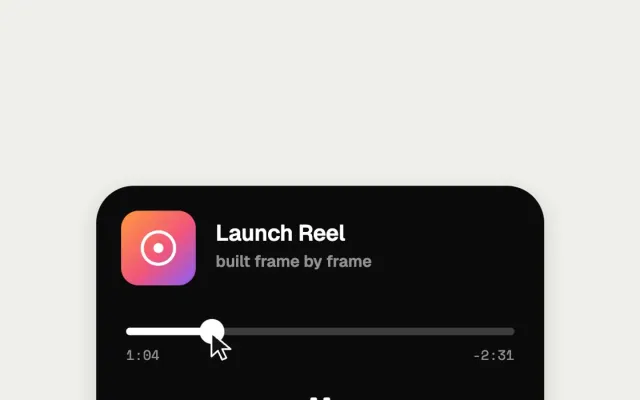
A single pill becomes a loader, check, status pill, player, scrub bar, volume slider, toggle, liquid tab bar, chart, command palette and toast, driven by a cursor, then loops back. Rewrite every label, pick a theme or brand accent, and render a 1080x1080 MP4 locally or with HyperFrames.
What UI motion skills give your agent
A clear starting point
Start with a real preview from the UI motion series.
A repeatable workflow
Compare 1 packs within this visual family.
A result you can inspect
Review the scene rhythm, required inputs and final output.
Find UI motion skills for your industry
How UI motion skills work
Paste the install prompt
Use the pack’s install prompt in your agent; sign in when asked.
CLI / MCP: Coming soon
Call it with a slash
In agents that support slash commands, call the installed skill by name.
/shape-to-ui-statesReview and ship
Check the output against your brief, then export or publish it yourself.
Copy prompt
Install the shape-to-ui-states skill (version 1.1.4). Download the ZIP from https://hotkit.dev/skills/shape-to-ui-states after signing in, then extract it. Verify SHA-256: cae68079a93e40e86587a8d7427dccb2f789e21800b02979fda4baf9633a3d46. Review SKILL.md and any scripts before running them. Place the skill folder in your agent's skills directory, or upload it using the agent's skill menu. Do not run scripts without reviewing dependencies. Ask the user for permission to write to the skills directory. If access is still blocked, output one ready-to-run copy command using the actual extracted folder and the correct skills path, for the user to run. Start a new chat after installing so your agent loads the skill. First task: read SKILL.md and help me create my first result with this skill.
Replace the brackets with your own content; leave optional ones out.
/shape-to-ui-states
Button word = 〔Button word — button word — max 12 chars〕
Player title = 〔Player title — title in the player — max 25 chars〕
Chart number = 〔Chart number — first chart number — max 7 chars〕
Chart number after the switch = 〔Chart number after the switch — second chart number — max 8 chars〕
Chart caption = 〔Chart caption — what the number counts — max 26 chars〕
Toast message = 〔Toast message — toast message — max 27 chars〕
Color = 〔Color — frost (grey, blue) / night (dark, orange) / paper (off-white, black) / sand (beige, green) — optional〕
Brand color = 〔Brand color — #RRGGBB — optional〕
Video size = 〔Video size — 1080p / 4K — optional〕
Not sure? Say: show me an example first
Why a skill instead of a prompt
| UI motion | Plain prompt | Skill |
|---|---|---|
| Layout | Chosen again each run | References supplied by the pack |
| Typography | Depends on the wording | Type guidance included |
| Consistency | Must be restated | Reusable instructions |
| Output | Needs manual inspection | Workflow and review checks |
Pricing
Pricing
Cancel anytime
Monthly
$12.90per month
Subscribe to Pro- Every premium pack
- Pack updates
- New packs included
- 50 different pack downloads per day
- Resets at 00:00 UTC. Same-day re-downloads do not count again.
Save 36% a year
Yearly
$99.00per year
Subscribe to Pro- Every premium pack
- Pack updates
- New packs included
- 50 different pack downloads per day
- Resets at 00:00 UTC. Same-day re-downloads do not count again.
Pay once · Founding price
Founding Lifetime
$129.00one-time
Get lifetime access- Every premium pack
- Pack updates
- New packs included
- 50 different pack downloads per day
- Resets at 00:00 UTC. Same-day re-downloads do not count again.
Price rises $20.00 for every 20 new packs, capped at $249.00.
Cancel anytime. Payments are non-refundable, except as required by law. · Privacy